Recovering from an avoidable mistake
How a simple snapshot config slipup cascaded into a full system crash & how I recovered

Despite what you may have heard, I’m not perfect. The following is an account of how a simple config error snowballed into a much bigger issue, how I untangled the mess it caused, and how I implemented a fix that prevents this from happening in the future. I made a silly mistake that almost cost me big. Well, it did cost me time, but at least I took something from it. It all came crashing down when I entered the dreaded command:
|ᵒ_ˣ| ~ $ sudo dnf upgrade --refreshYep. A simple update. I run this command daily. Every Fedora user does. Well, they should.
I love running updates. It makes me feel all warm and fuzzy inside while features improve and vulnerabilities are patched. I felt like the repository gods were smiling down on me.
Then some of the text began to turn yellow.
Then red.

Transaction failedOh no.

The update failed. Not only did it fail, but it failed spectacularly.
It’s easy to panic in these situations. Everything was working fine and now it’s not. I have these things over here that I need to be working on, but now I must focus on this thing here.
It’s okay though. The important thing to do here is stay calm.

No big deal. Let’s think about this for a moment. This is most likely fixable. If it’s not, I can always reinstall. I have backups and a couple extra drives if there’s a hardware failure. Worst case scenario: this machine is down for a day.
 Troubleshooting
“Hey, let’s restart the machine.” <- Something an idiot would say.
A restart made it worse; completely crashing the system.
Lesson learned -> restarts aren’t always the best move–especially in cases of failed updates or forensic investigations.
The login screen still appeared, which tells me it’s likely not a total loss, but after entering my credentials I found myself at a blank screen and a seemingly non-functional cursor. The system wasn’t responding to keyboard shortcuts to open applications either.
The GUI seems to have melted.
My first thought was graphics drivers or GNOME completely failing from a bad update, but I need to get to a shell if I want to find anything concrete.
Accessing a Shell
I was able to access TTY3 with
<ctrl><alt><F3>. The mouse was
frozen, but thank the heavens the keyboard was still taking input.
If that didn’t work, my next step was to make a recovery drive to
boot up and access the filesystem, but here we are.

I’m in. 😎
Investigation
It failed during an update with dnf, so I might as well start looking there.
|ᵒ_ˣ| ~ $ sudo dnf checkerror: sqlite failure: CREATE TABLE IF NOT EXISTS 'Packages' (hnum INTEGER PRIMARY KEY AUTOINCREMENT, blob BLOB NOT NULL): disk 1/0 error error: cannot open Packages index using sqlite - No such file or directory (2) error: cannot open Packages database in /usr/lib/sysimage/rpm
That’s just lovely. The two bits that stick out the most to
me here are:
disk 1/0 error error: cannot open Packages index using sqlite - No such file or directorycannot open Packages database in /usr/lib/sysimage/rpm
Fantastic. I can’t access the database to even check the status of the packages on my system. It looks like there are some disk errors too.
Following the Breadcrumbs
First, I need to check to make sure the RPM database even exists:
|ᵒ_ˣ| ~ $ sudo ls -lah /usr/lib/sysimage/rpmtotal 200M drwxr-xr-x. 1 root root 106 Apr 1 21:15 . drwxr-xr-x. 1 root root 20 Apr 1 21:15 .. -rw-r--r--. 1 root root 200M Apr 2 18:17 rpmdb.sqlite -rw-r--r--. 1 root root 32K Apr 3 21:18 rpmdb.sqlite-shm -rw-r--r--. 1 root root 0 Apr 2 18:17 rpmdb.sqlite-wal -rw-r--r--. 1 root root 0 Apr 1 21:15 .rpm.lock
That looks right. Still there.
The file called rpmdb.sqlite is the RPM database
referenced in the output from dnf check. The error was
complaining about being unable to open it. More specifically, the
error stated No such file or directory, yet we can see
that it exists. It contains all the installed packages, versions,
file lists, dependencies, and metadata for RPM & DNF on Fedora
systems. Don’t lose it if you can manage. One can imagine the
problems that could arise should this database get lost or
corrupted. It’s responsible for keeping everything straight so
package conflicts are avoided. You can generally find it at the
directory referenced above or by typing “where is the RPM database
stored” into your browser and following the search results like the
competent adult you are.
Either way, it’s still there. We don’t know if it’s corrupted or not, yet. We may need to rebuild it. We’re not going to do anything silly here like directly query the db or anything. There are rpm and dnf tools specific for these tasks.
I’m making a note and putting this on the back burner for now. I don’t think this is necessarily the root cause of the crash, but rather a symptom. First, we need to figure out what’s causing this issue and correct it, then we can come back and fix rpm & dnf.
There is also the disk 1/0 error that concerns me.
Let’s see how the root filesystem looks:
|ᵒ_ˣ| ~ $ df -h /Filesystem Size Used Avail Use% Mounted on /dev/mapper/luks-blah-blah-blah------------------- 952G 952G 64k 100% /
df reports file system space usage and yeah, that’s
uh…. that’s… that can’t be right. This is saying my root filesystem
is completely full. I’m just taking a wild guess here, but I imagine
this might be what’s causing problems. If there’s nowhere on the
drive to store all the new packages being downloaded and installed,
then the update will inevitably fail.
This drive was nowhere near full last I checked. There’s no way it filled up that fast with the few text files and such I’ve created. It has to be something else–probably automated–that chewed through all my storage.
Now we search.
If we want to find out what’s responsible for the usage
on our disk, then we probably want the disk usage
command. du is a recursive tool to ‘estimate file space
usage’ according to the man page. Running the command on its own
with no flags gives the name and space taken (in KB, I believe) by
the current working directory and every subdirectory recursively.
You can specify any directory and add additional flags to limit the
search’s depth and make it human readable. This output can also be
piped into the sort command to order the directories by
size.
We’ll start at the root directory.
|ᵒ_ˣ| ~ $ du -xhd1 / | sort -h Well, that output a whole lot of
du: cannot read directory '/blah/blah/blah' : Permission denied.
Let’s run that last command as a privileged user:
|ᵒ_ˣ| ~ $ sudo !!sudo du -xhd1 / | sort -h 0 /afs 0 /media 0 /mnt 0 /opt 0 /srv 4.0K /builddir 1.4M /root 37M /etc 15G /usr 31G /var 41G /
There’s nothing that’s really standing out here as being a
possible candidate for filling up a 1TB drive. Why does
df show the filesystem is full, but du
shows nothing of the sort? According to what we’re seeing here,
there’s just over 87G total. I’m not a mathmetician, but 87
!= 952.

I was initially considering the possibility that it could be
excessive logs, but /var is only 31G. That’s worth
looking into later and I’d like to fine tune my log retention a bit
more, but it’s (1)nothing out of the ordinary, and (2)out of scope
for this search as of right now. Later we can view what’s taking up
space in /var with a quick
sudo du -xhd1 /var | sort -h, the same command as the
last, focusing in on the /var directory, but for now we need to keep
investigating this crash and find out what filled a 1TB drive so
quickly.
The files filling the filesystem aren’t showing in this output.
The culprit doesn’t appear to be on the same subvolume.
hint hint ↑
Finally, a Breakthrough
I was doing a little searching online and saw several other users with spontaneous filesystem out-of-space issues generally just deleted files until they had the space necessary to continue, but that wasn’t quite good enough for me. I need to figure out why. Then, u/TheBubbleJesus noted that they had issues with too many “backups” in Timeshift. Now, I’m not using timeshift, but I do have btrfs & snapper so this is definitely worth looking into. There are a few commands that we can run to see what’s going on with snapshots.
First, let’s list all the snapshots.
sudo snapper list should generate a table showing
all the system snapshots with columns for the snapshot #, date, etc.
It should normally be a relatively small table with somewhere
between 15-25 entries, although as little as 5-10 or even upwards of
40-50 snapshots at any given time could technically be considered
“somewhat normal”. If the output appears somewhat normal then I can
continue my investigation elsewhere (although something on the high
end of the normal range still warrants some configuration
changes).
|ᵒ_ˣ| ~ $ sudo snapper list# │ Type │ Pre # │ Date │ User │ Cleanup │ Description ─────┼────────┼───────┼─────────────────────────────┼──────┼──────────┼───────────── 0 │ single │ │ │ root │ │ current 1 │ single │ │ Sun 11 Jan 2026 12:34:56 PM │ root │ timeline │ timeline 2 │ single │ │ Sun 11 Jan 2026 01:34:56 PM │ root │ timeline │ timeline 3 │ single │ │ Sun 11 Jan 2026 02:34:56 PM │ root │ timeline │ timeline 4 │ single │ │ Sun 11 Jan 2026 03:34:56 PM │ root │ timeline │ timeline . │ . │ . │ . │ . │ . │ . . │ . │ . │ . │ . │ . │ . . │ . │ . │ . │ . │ . │ . 1236 │ single │ │ Tue 31 Mar 2026 12:34:56 PM │ root │ timeline │ timeline 1237 │ single │ │ Tue 31 Mar 2026 01:34:56 PM │ root │ timeline │ timeline 1238 │ single │ │ Tue 31 Mar 2026 02:34:56 PM │ root │ timeline │ timeline 1239 │ single │ │ Tue 31 Mar 2026 03:34:56 PM │ root │ timeline │ timeline
How many snapshots would it take to fill up nearly a terabyte? Apparently 1239 is the limit.
There shouldn’t be nearly that many. That’s not just a few extra.
This is many hundreds of GB tied up blocks from snapshots and it
definitely explains both (1) How the filesystem filled up and (2)
why du -xhd1 / didn’t show it.
More on that later.
Wait, I Thought Snapshots Are Small?
For the uninitiated, over 1000 snapshots may sound like a lot of space, and it is, but also it isn’t. Snapshots themselves are very small. They’re primarily metadata structures that reference historical blocks on disk, but that’s only part of the story. Snapshots are primarily metadata, but they implicitly retain data by keeping references to historical extents.
Here, just look at this output showing the disk usage on my current snapshot directory:
|ᵒ_ˣ| ~ $  sudo du -xhd1 /.snapshots | sort -h

    0      /.snapshots/1
    4.0K    /.snapshots/1001
    4.0K    /.snapshots/1123
    4.0K    /.snapshots/1147
    4.0K    /.snapshots/1171
    4.0K    /.snapshots/1195
    4.0K    /.snapshots/1219
    4.0K    /.snapshots/1240
    4.0K    /.snapshots/1249
    4.0K    /.snapshots/1273
    4.0K    /.snapshots/1297
    8.0K    /.snapshots/1313
    8.0K    /.snapshots/1322
    8.0K    /.snapshots/1323
    8.0K    /.snapshots/1324
    8.0K    /.snapshots/1325
    8.0K    /.snapshots/1326
    8.0K    /.snapshots/1327
    8.0K    /.snapshots/1328
    8.0K    /.snapshots/1329
    8.0K    /.snapshots/1330
    8.0K    /.snapshots/1331
    8.0K    /.snapshots/1332
    136K    /.snapshots
They’re only either 4.0K or 8.0K each. Even if they were all 8.0K, 1239 of them only comes out just shy of 10MB. That’s a far cry from the hundreds of Gigabytes seen filling my filesystem. What gives? How can a few Megabytes of metadata fill up an entire filesystem? You have to consider what it’s pointing to as well. This directory is basically just metadata, after all.
I left out an important detail earlier.
The -x flag that was passed tells du to
skip directories on different file systems. This means that
du is only counting the physical space the metadata
takes up and not the historic data it points to. The
-x flag, on Btrfs, treats subvolumes as separate
filesystems, and snapshots are subvolumes. The
actual data a snapshot is pointing to is totally ignored by
du if the -x flag is used. The
/.snapshot/ directory just tells the filesystem what
snapshots exist. The metadata stored within /.snapshot/
maps out the locations of the blocks holding the data for historic
versions of directories and files.
To traverse snapshots normally, simply omit the -x
flag.
|ᵒ_ˣ| ~ $  sudo du -hd1 /.snapshots | sort -h


    0     /.snapshots/1
    25G   /.snapshots/1240
    25G   /.snapshots/1249
    25G   /.snapshots/1323
    25G   /.snapshots/1324
    25G   /.snapshots/1325
    25G   /.snapshots/1326
    25G   /.snapshots/1327
    25G   /.snapshots/1328
    25G   /.snapshots/1329
    25G   /.snapshots/1330
    25G   /.snapshots/1331
    25G   /.snapshots/1332
    41G   /.snapshots/1273
    41G   /.snapshots/1297
    41G   /.snapshots/1313
    48G   /.snapshots/1001
    52G   /.snapshots/1123
    52G   /.snapshots/1195
    53G   /.snapshots/1147
    53G   /.snapshots/1171
    54G   /.snapshots/1219
    724G    /.snapshots
This still isn’t the whole picture. Now we’re seeing the logical
size of each snapshot directory, which double counts the data across
snapshots. That’s why multiple snapshots appear to have the same
size. The total seen in the directory,
724G /.snapshots, is completely off from what is
actually stored on disk. Counting disk usage like this on Btrfs just
doesn’t make sense. Truth be told, du really isn’t the
best tool to see real disk usage on Btrfs.
du measures directory traversal, not physical
storage. On Btrfs, snapshots reference data outside the visible
directory tree, so du can drastically underreport
actual usage. Additionally, some extents may be referenced by
multiple snapshots, further skewing output.
The best tool for Btrfs is.. Well, btrfs.
To get a good look at what’s really going on in
your B-Tree filesystem, use
sudo btrfs filesystem usage /. This command returns
information specific to the way Btrfs likes to do things.
It includes total size, allocated, unallocated, used, free, and it
even differentiates between what data is original, duplicated, or
metadata.
|ᵒ_ˣ| ~ $  sudo btrfs filesystem usage /
    Overall:
        Device size:         951.27GiB
        Device allocated:        678.25GiB
        Device unallocated:      273.01GiB
        Device missing:          0.00B
        Device slack:            0.00B
        Used:            124.04GiB
        Free (estimated):        800.45GiB  (min: 663.95GiB)
        Free (statfs, df):       800.45GiB
        Data ratio:               1.00
        Metadata ratio:           2.00
        Global reserve:      512.00MiB  (used: 0.00B)
        Multiple profiles:              no

    Data,single: Size:644.24GiB, Used:116.80GiB (18.13%)
       /dev/mapper/luks-blah-blah-blah   644.24GiB

    Metadata,DUP: Size:17.00GiB, Used:3.62GiB (21.30%)
       /dev/mapper/luks-blah-blah-blah    34.00GiB

    System,DUP: Size:8.00MiB, Used:128.00KiB (1.56%)
       /dev/mapper/luks-blah-blah-blah    16.00MiB

    Unallocated:
       /dev/mapper/luks-blah-blah-blah   273.01GiB
At this point, I had enough clues to realize the problem wasn’t the data itself, it was how the filesystem was managing it.
Storage Exhaustion
Mechanism of Failure
This can be explained with a clear understanding of what snapshots actually are and what they’re doing. For this, you must first understand Btrfs (B-Tree File System) and how it, among other Copy-on-Write (CoW) filesystems, store and manage data.
A little Background on CoW filesystems
The key is in the name: Copy-on-Write.
CoW filesystems like ZFS, Btrfs, and ReFS are an interesting take on data storage. Traditional filesystems like ext4 & NTFS overwrite the original data on disk if a file is changed. On the other hand, CoW filesystems write changes to a new block while metadata pointing to the location of the file is updated and the original block of data is either marked as free space or kept if it has any snapshots pointing to it.
Wait, is there really any copying happening?
|ᵒ_ˣ| ~ $  cat ~/CoW.txt | cowsay
     ________________________________________
    / Maybe the key *isn't* in the name.     \
    |                                        |
    | Or maybe it is. There's certainly good |
    | reason for the naming, it's just a     |
    | little misleading.                     |
    |                                        |
    | Copy-on-write is also referred to as   |
    | *implicit sharing* or *shadowing*.     |
    | Those names seem a little more         |
    \ intuitive to me..                      /
     ----------------------------------------
            \   ^__^
             \  (oo)\_______
                (__)\       )\/\
                    ||----w |
                    ||     ||
We’re going to use reflink copies to illustrate how a CoW filesystem works.
A reflink, or “reference link” is type of copy made possible by copy-on-write. Rather than create a duplicate of the data at a new location on disk, a reflink copy just creates a new set of metadata for the copy and points it to the same blocks or “extents”.
Okay, first we’re going to create a file full of random binary junk data.
|ᵒ_ˣ| ~ $  dd if=/dev/urandom of=original.bin bs=1M count=10
    10+0 records in
    10+0 records out
    10485760 bytes (10 MB, 10 MiB) copied, 0.0305588 s, 343 MB/s
Now, we can make a couple different types of copies.
Since modern GNU coreutils cp defaults to
--reflink=auto, we have to explicitly tell
cp to do a traditional copy with the
--reflink=never flag
|ᵒ_ˣ| ~ $ cp --reflink=never original.bin copy.bin
And the following is a copy that explicitly requires a reflink:
|ᵒ_ˣ| ~ $ cp --reflink=always original.bin reflink.bin
|ᵒ_ˣ| ~ $  ls -l
    total 30720
    -rw-r--r--. 1 doug doug 10485760 Apr 21 21:24 copy.bin
    -rw-r--r--. 1 doug doug 10485760 Apr 21 21:01 original.bin
    -rw-r--r--. 1 doug doug 10485760 Apr 21 21:25 reflink.bin
Same exact filesize. Same Permissions. Same owner. Only the creation/modified time is slightly different.
Let’s look at the physical extent layout of each file. This should show us where on disk each file is located.
|ᵒ_ˣ| ~ $  filefrag -v *
    Filesystem type is: 9123683e
    File size of copy.bin is 10485760 (2560 blocks of 4096 bytes)
     ext:     logical_offset:        physical_offset: length:   expected: flags:
       0:        0..    2559:     871840..    874399:   2560:             last,eof
    copy.bin: 1 extent found
    File size of original.bin is 10485760 (2560 blocks of 4096 bytes)
     ext:     logical_offset:        physical_offset: length:   expected: flags:
       0:        0..    2559:     906203..    908762:   2560:             last,shared,eof
    original.bin: 1 extent found
    File size of reflink.bin is 10485760 (2560 blocks of 4096 bytes)
     ext:     logical_offset:        physical_offset: length:   expected: flags:
       0:        0..    2559:     906203..    908762:   2560:             last,shared,eof
    reflink.bin: 1 extent found
Notice in filefrag’s output that
copy.bin has a physical offset of
871840.. 874399: while both
original.bin and reflink.bin have a
physical offset of 906203.. 908762:. This means that
the original file and the reflink both point to the same
location in physical storage while the copy made the
“traditional” way has a different location on disk.
This concept illustrates how powerful CoW filesystems can be. By making reflink copies, we’re already saving a tremendous amount of disk space. Only the changes to a file will create a new extent.
|ᵒ_ˣ| ~ $ echo "new data" >> reflink.bin
|ᵒ_ˣ| ~ $  filefrag -v *
    Filesystem type is: 9123683e
    File size of copy.bin is 10485760 (2560 blocks of 4096 bytes)
     ext:     logical_offset:        physical_offset: length:   expected: flags:
       0:        0..    2559:     871840..    874399:   2560:             last,shared,eof
    copy.bin: 1 extent found
    File size of original.bin is 10485760 (2560 blocks of 4096 bytes)
     ext:     logical_offset:        physical_offset: length:   expected: flags:
       0:        0..    2559:     906203..    908762:   2560:             last,shared,eof
    original.bin: 1 extent found
    File size of reflink.bin is 10485769 (2561 blocks of 4096 bytes)
     ext:     logical_offset:        physical_offset: length:   expected: flags:
       0:        0..    2559:     906203..    908762:   2560:             shared
       1:     2560..    2560:          0..         0:      0:             last,unknown_loc,delalloc,eof
    reflink.bin: 2 extents found
And now after altering reflink.bin with the
echo statement, the file points to two separate
extents, the same one as before which is shared with
original.bin, and a second extent containing our new
data.
When a change is made, new extents are allocated for the modified regions of the file being altered. This is where the name comes from. When a file is written, any of the changed extents are copied (and altered).
Say it with me:
Copy.
On.
Write.
Really, a file is (1) metadata that isn’t really pertinent to this discussion, (2) metadata that tells the filesystem where the data is stored on disk, and (3) the extents of data themselves. For all intents and purposes, an extent can be thought of as a variable size block of storage. It’s a contiguous region of the disk that holds data and is referenced by metadata.
To understand how this works, it helps to look at how Btrfs actually stores data at a lower level.
Following is a diagram (infograph?) illustrating the Btrfs write cycle:
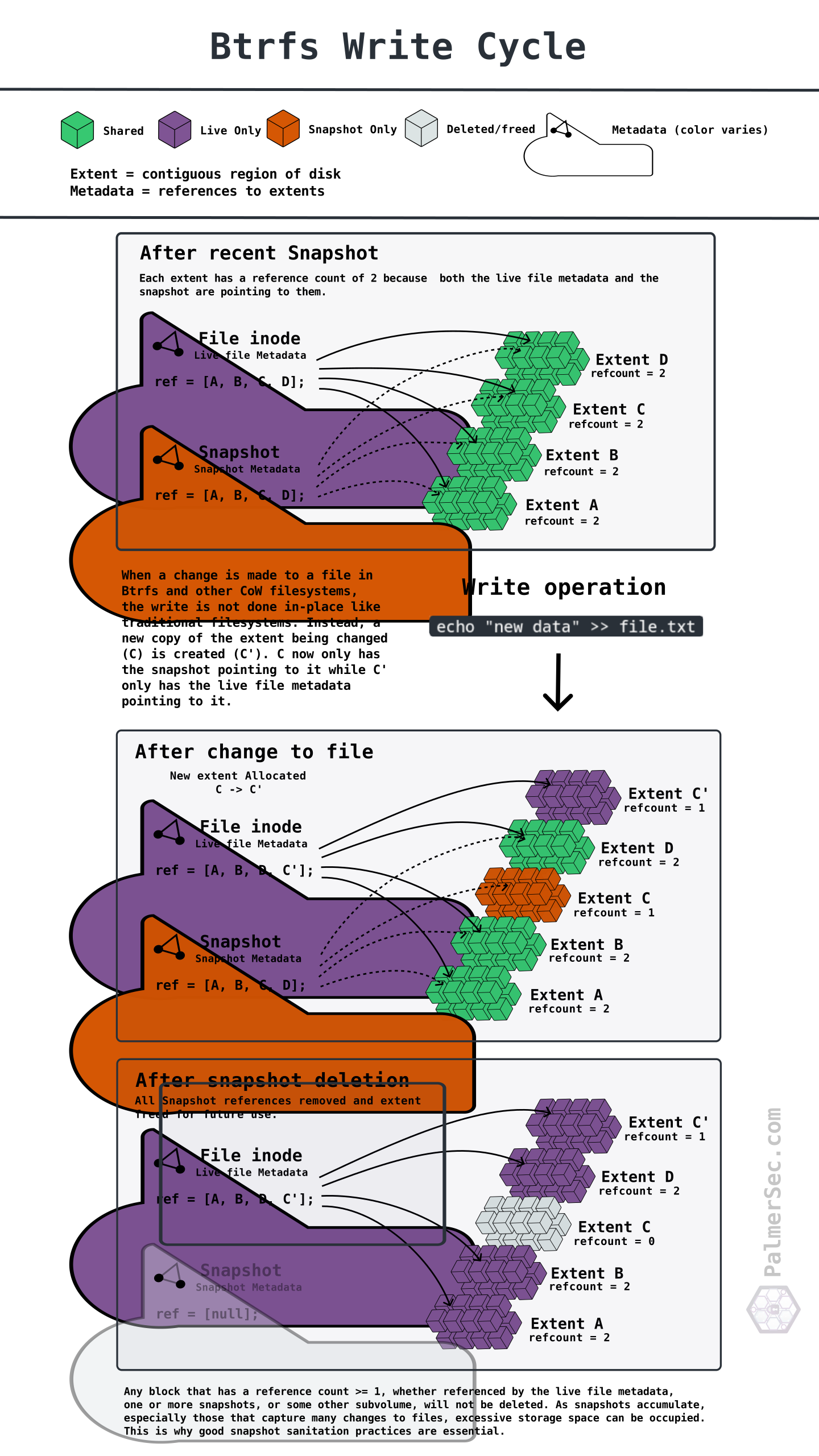
This post quickly turned from a system crash into a deep dive on modern filesystem behavior. Understanding Btrfs helps explain the root cause, but let’s steer back to the main point.
How can snapshots fill a filesystem?
Snapshots preserve references to historical file data as extents on disk. High snapshot frequency amplifies the storage impact of frequent writes: new extents are created as data changes, while older ones remain referenced and cannot be reclaimed. Over time, this accumulation of historical data can grow far beyond the size of the live filesystem.
Luckily, Snapper includes default config files along with systemd
services like snapper-timeline.timer and
snapper-cleanup.timer to automate the snapshot
lifecycle. This means that snapshots can be taken automatically at
various configured frequencies and they can also be automatically
deleted when some threshold is reached.
THIS POST IS UNDER CONSTRUCTION. EVERYTHING PAST THIS POINT IS NOTES.
THE ISSUE HAS BEEN RESOLVED, BUT I NEED TO FINISH THE WRITEUP.
THANK YOU FOR YOUR PATIENCE[show config defaults]
“talk talk talk”
[show
sudo systemctl status snapper-timeline.time]
[show
sudo systemctl status snapper-cleanup.timer]
“ah, there’s the problem… blah blah blah”
TLDR
On a Copy-on-Write filesystem, data is never overwritten in place — every modification is written to a new extent, while snapshots keep references to the old ones. If a block from a previous version is referenced by a snapshot, it cannot be deleted.
As files change over time and the snapshots accumulate, more data is written to new blocks to preserve older versions. In systems with frequent snapshots and no cleanup, files with high write frequency (logs, databases, etc.) can rapidly escalate into a storage exhaustion cascade.
In other words, the filesystem wasn’t growing because of how much
data existed, it was growing because of how much the data was
changing over time. Disabling snapper-cleanup.timer is
a simple way to allow this growth unabated.
During an attempt to update system packages using
dnf, the filesystem ran out of space and the system
crashed.
The Fix
Okay, so the solution seems simple. I need to delete snapshots to free up space, fix the tangled mess of broken packages in dnf, and fix whatever issue was causing this many snapshots to build up in the first place.
Clearing Space
Deleting Snapshots
Which Snapshots to save?
Bulk deletion script
Recover from Snapshot
Fixing DNF & RPM
sudo dnf check
sudo dnf distro-sync --refresh
uh oh
Updating and loading repositories: RPM Fusion for Fedora 43 - Nonfree 100% | 2.6 KiB/s | 6.4 KiB | 00m02s RPM Fusion for Fedora 43 - Nonfree - Updates 100% | 2.7 KiB/s | 5.6 KiB | 00m02s RPM Fusion for Fedora 43 - Nonfree - Steam 100% | 2.8 KiB/s | 5.6 KiB | 00m02s RPM Fusion for Fedora 43 - Nonfree - NVIDIA Driver 100% | 3.2 KiB/s | 6.1 KiB | 00m02s RPM Fusion for Fedora 43 - Free - Updates 100% | 1.7 KiB/s | 3.2 KiB | 00m02s RPM Fusion for Fedora 43 - Free 100% | 2.5 KiB/s | 3.7 KiB | 00m01s Fedora 43 - x86_64 100% | 23.7 KiB/s | 27.4 KiB | 00m01s Fedora 43 openh264 (From Cisco) - x86_64 100% | 1.5 KiB/s | 986.0 B | 00m01s Copr repo for PyCharm owned by phracek 100% | 6.7 KiB/s | 2.1 KiB | 00m00s Fedora 43 - x86_64 - Updates 100% | 50.6 KiB/s | 25.2 KiB | 00m00s google-chrome 100% | 4.2 KiB/s | 1.3 KiB | 00m00s Repositories loaded. Failed to resolve the transaction: Problem: The operation would result in removing the following protected packages: gnome-shell, selinux-policy-targeted You can try to add to command line: --skip-broken to skip uninstallable packages[replace this with formatted version]
It looks like there are some protected packages that have been duplicated but dnf refuses to delete them. shucks. We’ll have to get our hands dirty.